How to use Puzzle Me This
A five-minute guide for teachers
Type a theme, pick a difficulty and a grade, and you have a word search with definitions. Print it with an answer sheet, or share a link and let the class race each other on their own devices.
Making a puzzle
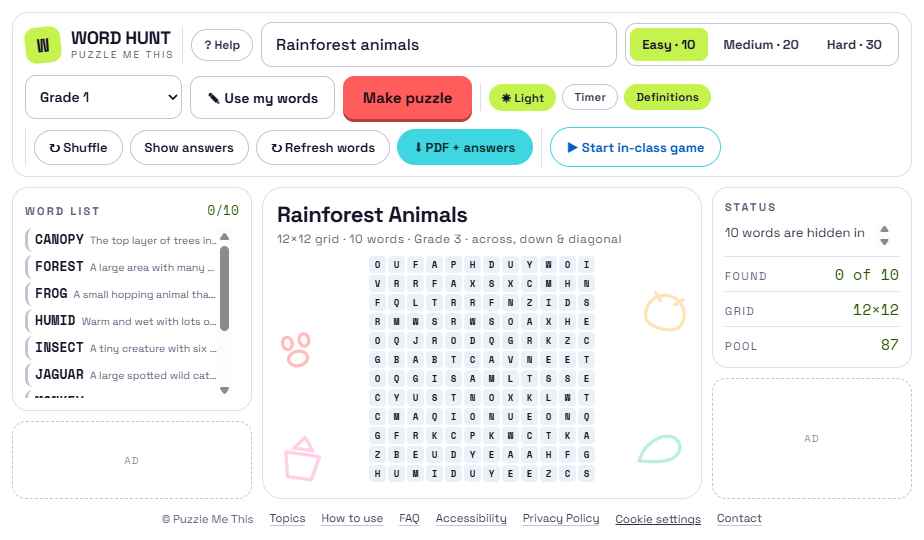
Type a theme
Anything: rainforest animals, fractions, Anzac Day, the water cycle. As you type, matching themes from the topic library appear underneath — click one, or keep typing your own.
Choose a difficulty
Easy gives 10 words, Medium 20, Hard 30. The grid grows to suit, so a hard puzzle is a bigger square as well as a longer list.
Set the grade
Grade 1 through to Grade 12. This changes which words are chosen and how they are hidden — see grade levels below.
Press Make puzzle
The grid is built, definitions are attached to each word, and doodles related to the theme are drawn around the edges. Press it again for a different puzzle on the same theme.
Shuffle keeps the same words and rearranges the grid. Refresh words swaps in a different set of words on the same theme — useful when a class needs a second sheet that isn't a repeat.
What's on the screen
Solving it on screen
Click or tap the first letter of a word, then the last letter — the whole word fills in. Dragging across the letters works too, on a mouse or a touchscreen.
Each word gets its own colour, and finding one crosses it off the list. Words run across, down, diagonally and backwards depending on the grade.
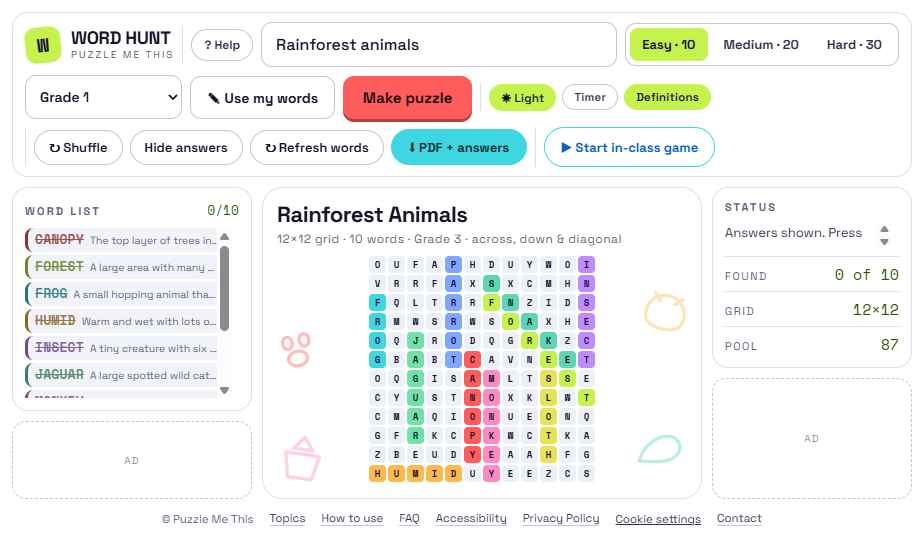
Find them all and a card appears with your time. From there you can look back over your puzzle, or start a fresh one on the same theme with different words.
Printing and PDFs
Press PDF + answers. Your browser's print window opens with a two-page document:
- Page 1 — the puzzle, the word list, and name and class lines for the student to fill in.
- Page 2 — the solution, with every word highlighted in colour.
In the print window choose Save as PDF as the destination to keep a copy, or pick your printer to print straight away. Definitions are included if the Definitions toggle is on when you press the button.
Printing in black and white? The answer sheet still works — words are outlined as well as coloured, so they read clearly on a mono printer.
Using your own words
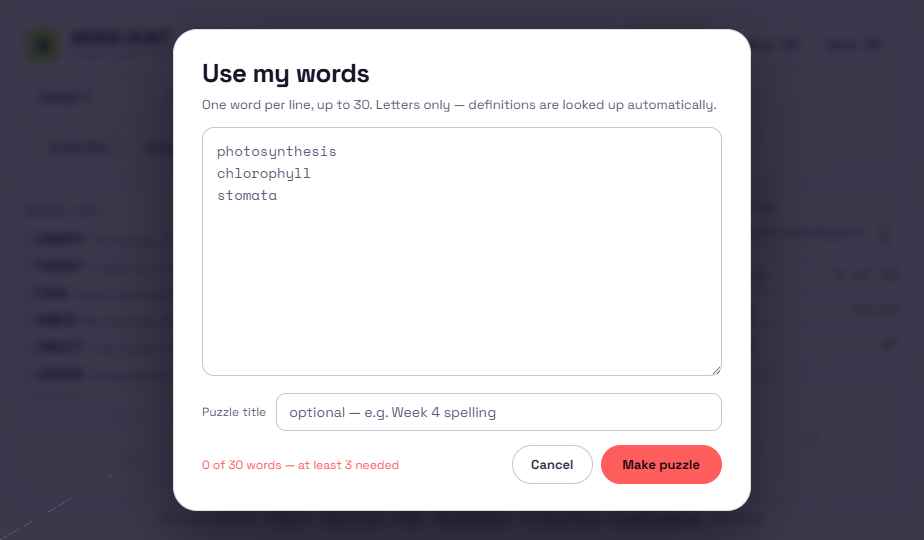
Press Use my words to paste in a spelling list, key vocabulary, or student names. One word per line, up to 30. Letters only; anything else is trimmed out.
Give it a title — Week 4 spelling, Chapter 6 vocabulary — and that title appears on the puzzle and on the printed sheet. Definitions are looked up automatically where they can be found.
Your words are used for that puzzle only. They aren't saved to the theme library or shared with anyone.
Running an in-class game
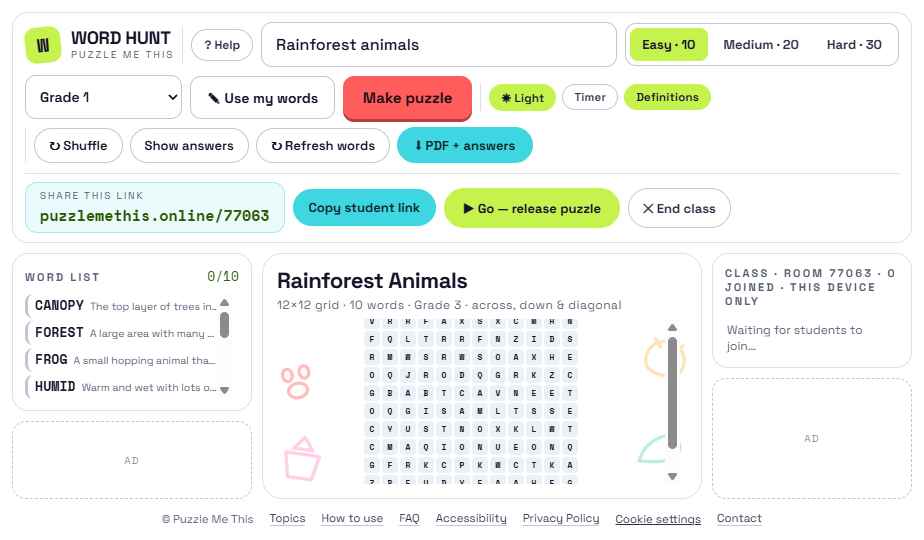
Make the puzzle first
Get the puzzle you want on screen, then press Start in-class game.
Share the link
A short link appears — something like puzzlemethis.online/58345. Write it on the board or press Copy student link and send it out. Students don't need an account or an app.
Students choose a name
They open the link, type a name for themselves, and pick light or dark mode. Then they wait — they can't see the puzzle yet. Their names appear in your class list as they arrive.
Press Go
Everyone gets the puzzle at the same moment. Students see only the puzzle and the word list — no controls, no answers, no way to change the puzzle.
Watch the race
The number beside each name climbs as they find words. Click a name to look at that student's grid and see how they're going.
A champion is declared
The first student to find every word is announced on every screen with balloons. Press New round to make another puzzle and send the same class back to the waiting room — nobody has to sign in again.
End class closes the room. Up to 200 students can be in one room at a time.
The timer
Turn on Timer in the top bar and a large clock appears with start and stop buttons. It counts up by default. Set a number of minutes and it counts down instead, which suits a warm-up or a beat-the-clock challenge.
Light and dark mode
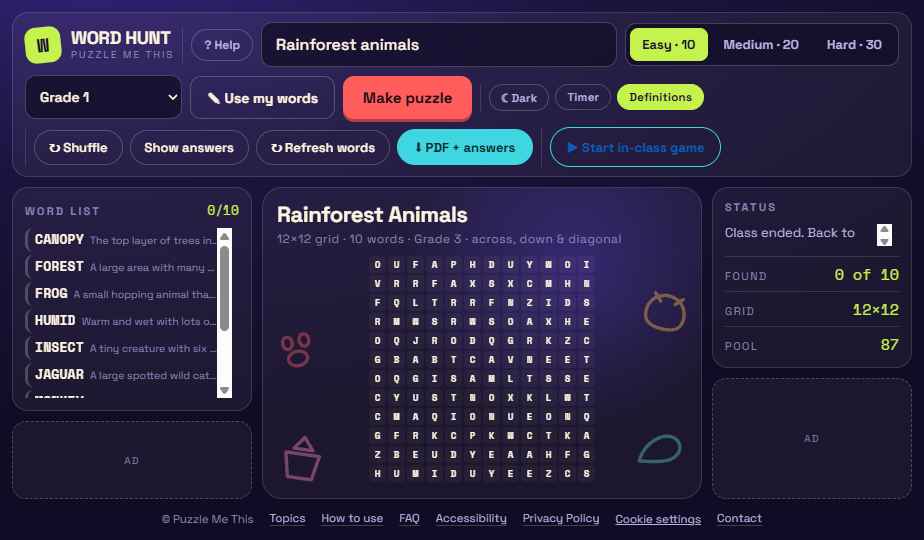
The site opens light — black text on white, which prints and projects well. The Dark button in the top bar swaps the whole site over for anyone who prefers it, and the choice is remembered next time. Students pick their own when they join a class game. Printing is always black on white regardless.
Grade levels explained
The grade you choose does more than filter the vocabulary:
If something goes wrong
A theme gives odd or too few words
Press Refresh words to pull a different set. Very narrow themes have less to draw on — broadening it a little ("volcanoes" rather than "Mount Vesuvius eruption dates") usually helps. Or use Use my words and supply exactly what you want.
Students can't see the puzzle
Check you have pressed Go. Until then they sit in the waiting room by design, so nobody gets a head start. Also check they typed the link exactly, including the five digits.
Nothing happens when I press PDF
Your browser may be blocking the print window. Allow pop-ups for this site, or press Ctrl+P (Cmd+P on a Mac) instead.
A word appeared that I'd rather not have in class
Words are screened before they reach a puzzle. If something still slips through, press Refresh words and let us know at the address below so it can be added to the filter.